Shipping a Customer Order on the SureShip Console
Setting Up Freight Billing terms
- Open the SureShip Customer Orders form.
- Select the Billing tab: The billing tab is used to set the freight billing terms, select account information and select shipping parties used for international or third-party shipments.
- Bill Transportation To: Use the dropdown to select from the following:
- Prepaid - freight charges paid by the company.
- Prepaid and Add - freight charges paid by the company but added back to the customer using a freight rule.
- Collect or Third Party - freight covered by the customer or a third party.
- Freight Rule: For billing terms Prepaid and Add select a freight rule to automatically bring the freight charges back to the customer order freight field.
- Cust Acct: For billing terms of Collect or Third Party select the customers carrier account from the drop down.
- Duty to Bill To Transportation and Duty Cust Carrier Account: If the company is paying for the freight select prepaid. However, if the customer will be paying for the duties and taxes you would select Collect from the Duty Bill Transportation drop down and select the customer carrier account from the Duty Cust Carrier Account drop down.
- Select Save.
Creating a Shipment with a Customer Order
- On the SureShip Console form select the Customer Order tab.
- Specify the CO Num (Customer Order number).
- Select the items for your shipment.
- Select Create Shipment.
- A BOL number will automatically be generated with the message below displayed.
- The Customer Order shipment is created.
Packaging an Order
- In the Bulk Package Operation section select the Package Type and specify the Qty (quantity) of that package type for your items.
- Select Add Packages.
3. Select the box you want to pack in the Packages section.
4. Select the Prompt for Qty check box, Item to be placed into the package and specify the Qty to be packed.
5. Continue steps 1-4 until all items are packed (indicated by the graphic below).
Rate Shopping (Optional)
- Once all items are packed, select the SureShip Rates tab to rate shop your preferred carrier. Select ALLParcel to see all carrier options available and then select Get Rates.
- Select your rate.
Generating Labels/Shipping
- On the Pack Scan tab select the Print Shipping Labels in the Print & Ship section.
2. In the Packages section under Tracking Numbers your numbers will appear as they have been generated, and your carrier labels will print to the Zebra printer.
3. On the Documents to Print tab you can select the documents you want to generate.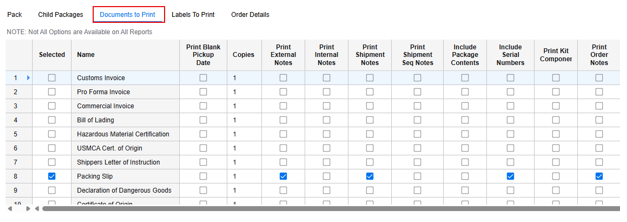
4. After selecting all documents, select Print Docs/Ship Orders in the Print & Ship section. 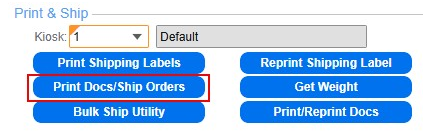
5. You will receive a message indicating the shipment was successful and paperwork with all your shipping information will be generated.
Related Articles
Shipping a Service Order on the SureShip Console
Shipping a Service Order on the SureShip Console SureShip will ship Service Order Transaction Types from the Service Order Transaction form. These are the following transaction types: Exchange Shipment, Customer Shipment, and Loaner Shipment. Setting ...Shipping a Transfer Order on the SureShip Console
Setting Up Freight Billing terms Open the SureShip Transfer Orders form. Select the Billing tab: The billing tab is used to set the freight billing terms, select account information and select shipping parties used for international or third-party ...SureShip Service Order Pick, Pack & Ship Process Guide
SureShip Service Order Pick, Pack & Ship Process Guide SureShip™ will ship Service Order Transaction Types from the Service Order Transaction form. The following transaction types can be shipped: Exchange Shipment, Customer Shipment and Loaner ...SureShip Transfer Order Pick, Pack & Ship Process Guide
SureShip Transfer Order Pick, Pack & Ship Process Guide Setting up Freight Billing terms After entering your transfer order, open the SureShip Transfer Orders form and filter to select your transfer order. Select the Billing tab: The billing tab is ...SureShip Standard Pick, Pack & Ship Process Guide
SureShip Standard Pick, Pack & Ship Process Guide Setting up Freight Billing terms Open the SureShip Customer Orders form. Select the Billing tab: The billing tab is used to set the freight billing terms, select account information and select account ...