SureShip Carrier Output Manager Installation Guide
SureShip Carrier Output Manager Installation Guide
Purpose: This
manual will help you install and configure the SureShip Carrier Output Manager
Service. This software is used to print
output from carriers on the local network.
Service Installation Location: This
service should be installed on a local machine that has access to both the
drive share where SyteLine sends its output, and all the required printers for
both PDFs and labels from the carrier. A
user with at least Machine admin rights should run the installer.
1. Run the setup.exe provided by Decision Resources and follow the prompts.
2. Accept the default values here for Folder and Everyone.
3. Accept the default values here for Folder and Everyone.
4. Close the installer when complete.
5. NOTE - The service installs as a local service account. In most cases, you will need to update the logon/starting credentials of the service to a domain account that has the rights to add, edit, move and delete files in the input and archive directory in order for printing to function properly.
Configure the Software:
1. In the Decision Resources folder under the start menu, run the SureShip Output Manager Configuration Wizard.
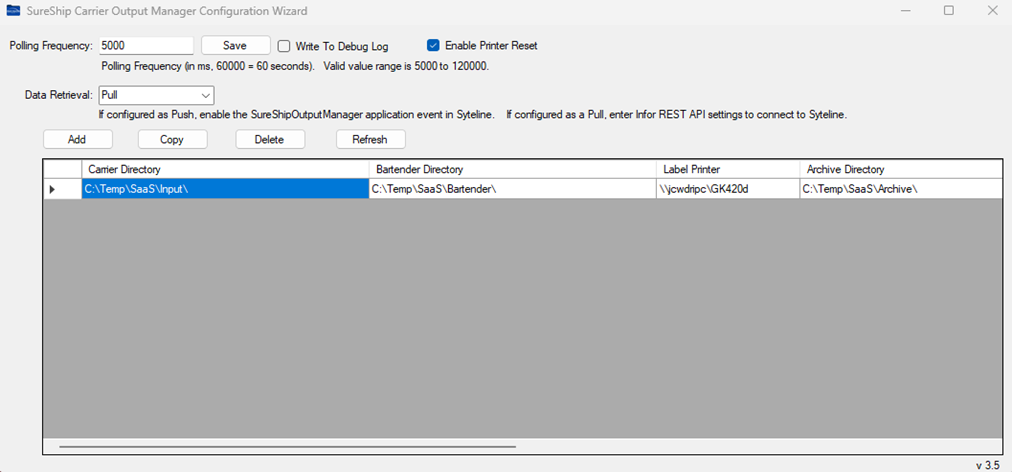
2. Set
the Polling Frequency to somewhere between 5000 and 120000 ms. This is how
often the service will poll the input directories for files to print.
3. The
Write To Debug Log should be unchecked. This field should only be checked under
the direction of Decision Resources technical support to help diagnose issues
with output.
4. If
the FedEx barcodes are not printing properly, some Zebra printers require a
reset command before printing the label per Zebra Technologies support. Select
the Enable Printer Reset check box to send this command.
5. Set the Data Retrieval method to Pull or Push.
Data retrieval can be set up to either Pull data from SyteLine using the Infor Rest API, or it can be set up to have data Pushed from SyteLine to your local folders via SyteLine Logical File Folders. You must choose one methodology for data retrieval. If you change Data Retrieval methods, all existing configurations will be deleted, and need to be re-entered since they require different information.
If you chose Pull as the data retrieval method, continue with the instructions by following the steps under "Pulling Data From SyteLine". If you chose Push as the data retrieval method, continue with the instructions by following the steps under "Pushing Data From SyteLine".
Pulling Data from SyteLine:
(Preferred Method)
Each kiosk
in each SyteLine site is capable of supporting a separate output folder in
SureShip Output Manager. Each
monitored folder will print to a single Label printer and a single Form
printer. You may setup as many output folders as you have kiosk licenses so
that each kiosk prints to a unique set of printers.
1. In
SyteLine, using the Groups form, create a group for the SureShip Output
Manager. In the Group Authorizations form, add IDO objects ue_SS_Carrier_Files
and ue_SS_FormRequests, and set all privileges to Granted.
2. In
SyteLine, using the Users form, create a User to connect to SyteLine and
retrieve data. Under User Modules, provide the user an Automation license only.
Add the user to the Group created in step 1.
NOTE- When setting the password, it is a current limitation of the Infor Rest API that passwords contain only alpha-numeric values. No special characters can be used.
3. In SyteLine, on the Event Triggers form, make sure the SureShipOutputManager Event does not have the Active check box selected for each site using SureShip™.
4. In
the SureShip Output Manager Configuration Wizard, click Add to add a SyteLine
configuration to monitor and pull down data to print into a local folder for
printing. Enter the following information for each configuration to be setup:
- Carrier Directory: This is the directory where output files in SyteLine will be written for printing. It can be a local drive such as C:\SureShipOutput\Kiosk1, or a network drive such as \\companyfileserver\SureShipOutput\Kiosk1\.
- Label Printer: Enter the UNC path for the label printer. This will be where all zebra label files from the carrier print.
- Archive Directory: This is the directory where PDF files from the carrier will be stored after printing. These will generate if you selected to print the Carrier BOL, Packing Slip, etc… during shipping.
- Form Printer: Enter the UNC path for the form printer. This will be where all PDF files from the carrier print.
- *If you will be using Bartender to print non-carrier labels from SureShip™, enter the directory that Bartender is setup to monitor here. Any SureShip Bartender labels will be saved to this directory for Bartender to handle.
- Configuration Name: Enter the SyteLine Configuration to be monitored.
- User Name: This is the user name created in step 2.
- Password: This is the password created in step 2.
- URL: This is the Rest URL for your Infor SyteLine instance. The value will be https://<Server>.erpsl.inforcloudsuite.com/IDORequestService/ido
- <Server> will be the specific server where your cloud instance is hosted. Decision Resources or your Infor partner can help you with this information.
- Kiosks: Enter the comma separated list of all kiosks in the specified SyteLine configuration that will print to this zebra printer. If all of your kiosks print to the same printer, then you may leave this field blank.
5. On
the machine where SureShip Carrier Output Manager is installed, go to Services,
and start the SureShip Carrier Output Manager Service.
Pushing Data from SyteLine:
Each kiosk
in SyteLine is capable of supporting a separate output folder in SureShip
Output Manager. Each monitored folder will print to a single Label printer and
a single Form printer. You may set up as many output folders as you have kiosk
licenses so that each kiosk prints to a unique set of printers.
1. In
the SureShip Output Manager Configuration Wizard, click Add to add an output
folder to monitor. Enter the following information for each folder to be set up:
- Carrier Directory. This is the directory to monitor for output files from SureShip. It can be local drive such as C:\SureShipOutput\Kiosk1, or a network drive such as \\companyfileserver\SureShipOutput\Kiosk1\.
- Enter the UNC path for the label printer. This will be where all zebra label files from the carrier print.
- Enter the Archive Directory. This is the directory where PDF files from the carrier will be stored after printing. These will generate if you selected to print the Carrier BOL, Packing Slip, etc… during shipping.
- Enter the UNC path for the form printer. This will be where all PDF files from the carrier print.
2. In
Syteline, using the File Servers and File Server Logical Folders form, setup a
Logical Folder for each configuration entered in step 4. Refer to Infor’s documentation when
configuring those.
3. In
Syteline, if a SureShip Output group does not exist, create one using the
Groups Form. Then use the Object Authorization for Group form and select object
type File Server. Enter each File Server Logical Folder created for use with
SureShip™ here and give full permissions.
4. In
SyteLine, on the SureShip Kiosks form, enter the File Server information
configured for each kiosk.
5. In
SyteLine, on the Event Triggers form, make sure the SureShipOutputManager Event
is set to Active for each site using SureShip™.
6. On
the machine where SureShip Carrier Output Manager is installed, go to Services,
and start the SureShip Carrier Output Manager Service.
Uninstall Instructions:
1. To Uninstall the service and configuration wizard, go to Add or Remove Programs. Under Apps and Features, select SureShip Carrier Output Manager, and click Remove.
Related Articles
UCS Carrier API Setup and Configuration
UCS Carrier API Setup and Configuration Overview This document is designed to explain how to setup and configure a Universal Carrier Schema (UCS) in SureShip™. UCS Setup Refer to the UCS Carriers spreadsheet for the list of available UCS Carriers and ...Configuring Custom Shipping Labels with SureShip
Configuring Custom Shipping Labels with SureShip Bartender Configuration Install and license Bartender automation on a machine in your environment. Setup polling automation for a directory in your environment. Using the template .btw and template ...UCS Carrier API Setup and Configuration - FedEx (Cloud)
UCS Carrier API Setup and Configuration - FedEx (Cloud) Overview This document is designed to describe how to setup and configure a Universal Carrier Schema (UCS) in SureShip™. UCS Setup In the Carriers form, add the Carrier Code listed for the UCS ...UCS Carrier API Setup and Configuration - FedEx (On Prem)
UCS Carriers API Setup and Configuration - FedEx (On Prem) Overview This document is designed to describe how to setup and configure a Universal Carrier Schema (UCS) in SureShip™. UCS Setup In the Carriers form, add the Carrier Code listed for the ...SureShip EasyPost USPS Configuration
SureShip EasyPost USPS Configuration Create an account on Easypost.com Sign into Easypost and under Account Settings on the left hand menu, open the Carriers tab. From the Carriers tab, scroll to find the USPS from the list of carriers and click ...